






When you trade options intraday in India, managing risk in real time is just as important as picking the right strike. Cover order options trading gives you a structured way to handle this because the stop loss is built into the order itself. A Cover Order is a two-legged order type that lets you place your entry and cover order stop loss trigger in a single step. You do not have to go back and place the stop loss separately after your position is executed. Both legs are submitted together from the order pad, and the stop loss remains active as long as the position is open.
For options traders who work with defined entry points and pre-planned risk levels, this order type fits naturally into the workflow. CubePlus supports cover orders for options directly from the option chain. The steps below walk through exactly how this works.
Finding Your Strike Using the CubePlus Option Chain
Before you can place a cover order, you need to open the order pad for the option you want to trade. CubePlus gives you more than one way to do this.
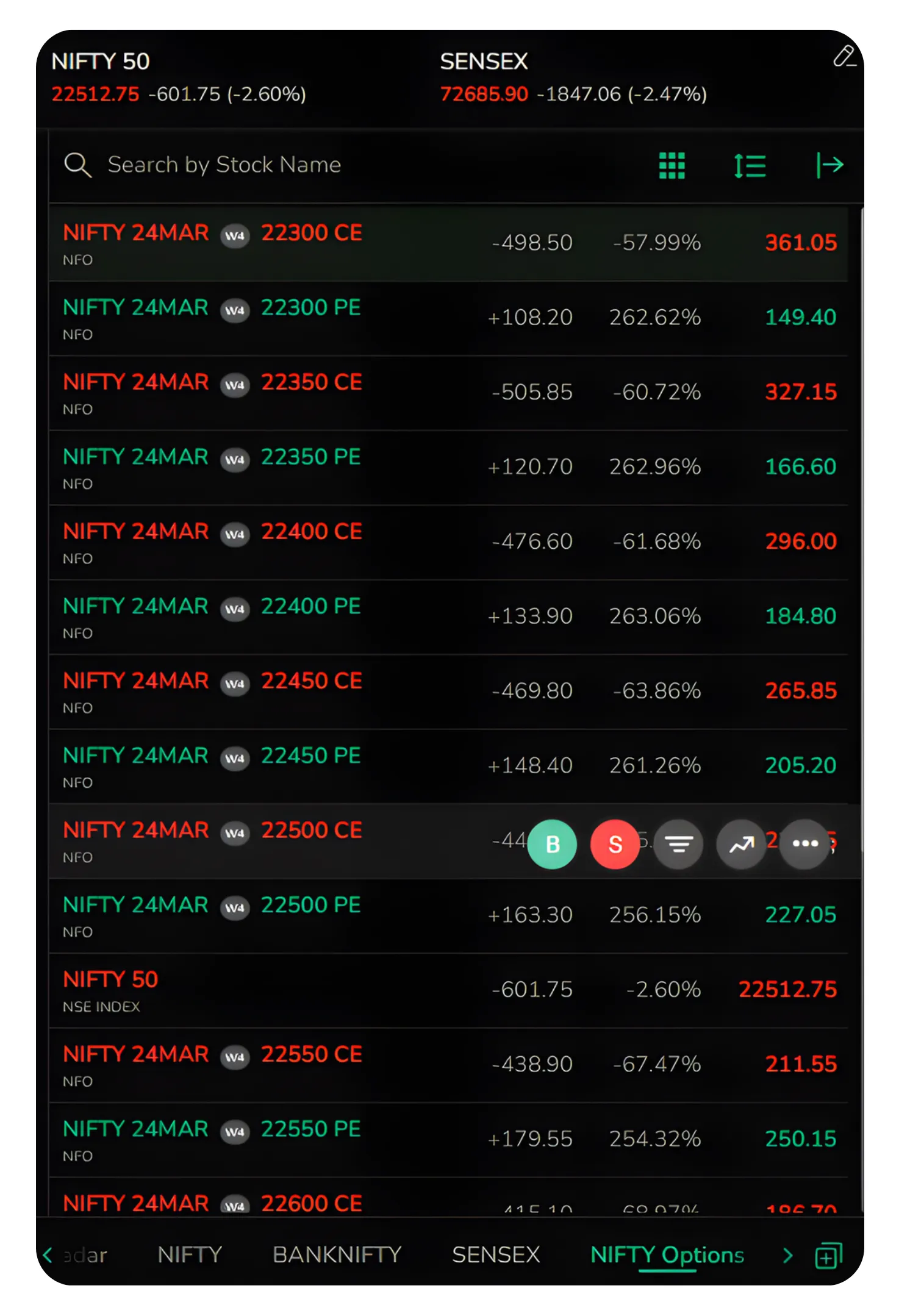
One of the most common ways is through the Market Watch. If you have your preferred Nifty options already added to your watchlist, you can simply tap on the strike you want, for example NIFTY 24MAR 22500 CE, and the order pad will open directly from there. This is a quick route if you already know the strike you are targeting and do not need to browse the option chain first.
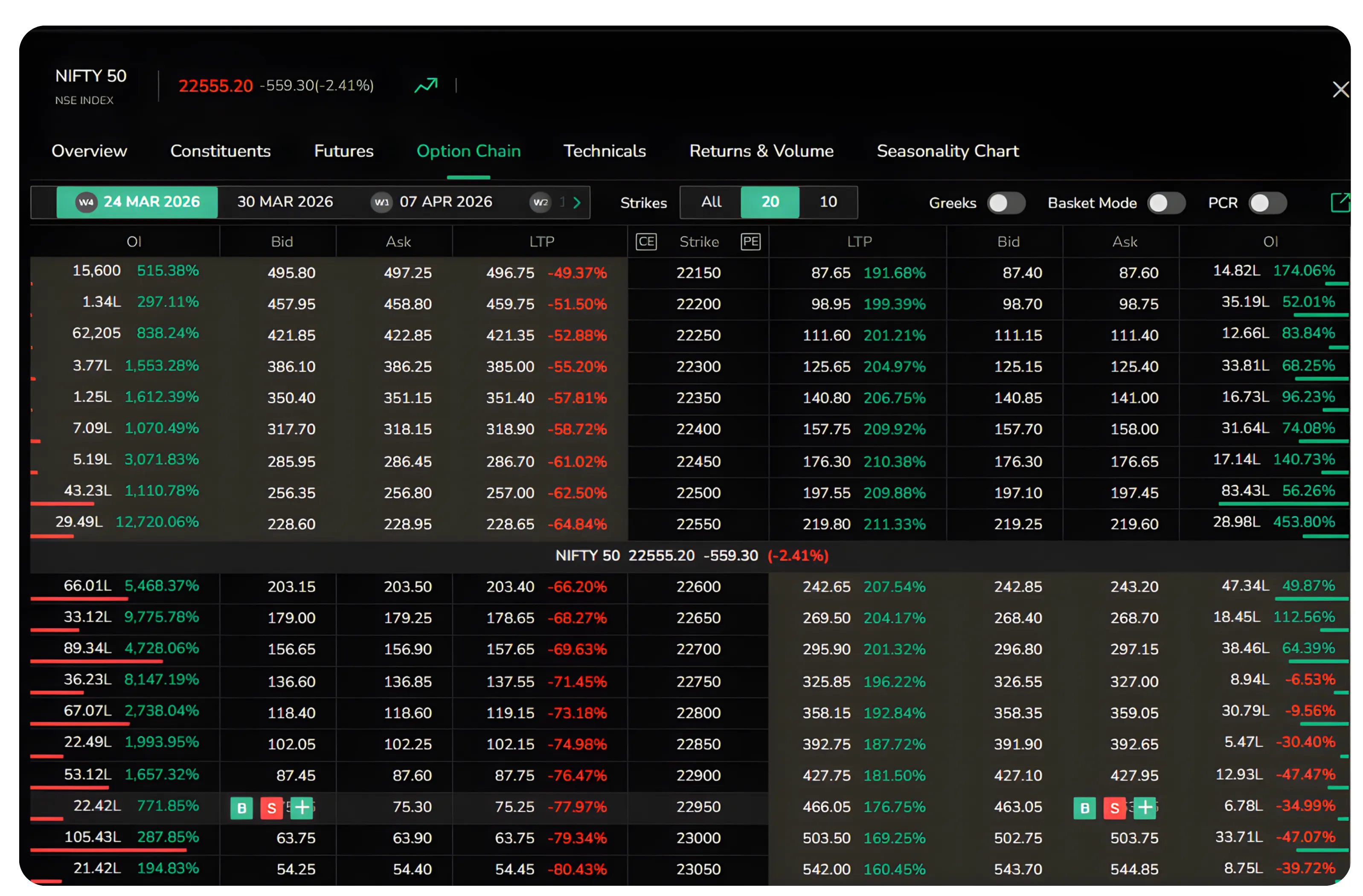
Alternatively, you can open the order pad directly from the CubePlus option chain. Navigate to the Nifty 50 Option Chain, select your expiry, and use the Buy button against any strike to launch the order pad. The CubePlus option chain is particularly useful when you want to place Nifty options cover orders after evaluating open interest or bid-ask spreads across multiple strikes.
Either way, the order pad that opens is the same. Once it is open, the next step is to switch to the CO tab to set up your cover order.
Opening the Order Pad
Clicking the Buy button on any strike in the option chain opens the order pad on the right side of the screen. By default, the order pad opens in Normal mode. You can see the standard fields here including order type (Limit, Market, SL, SL-M), quantity, price, and the required margin details at the bottom.
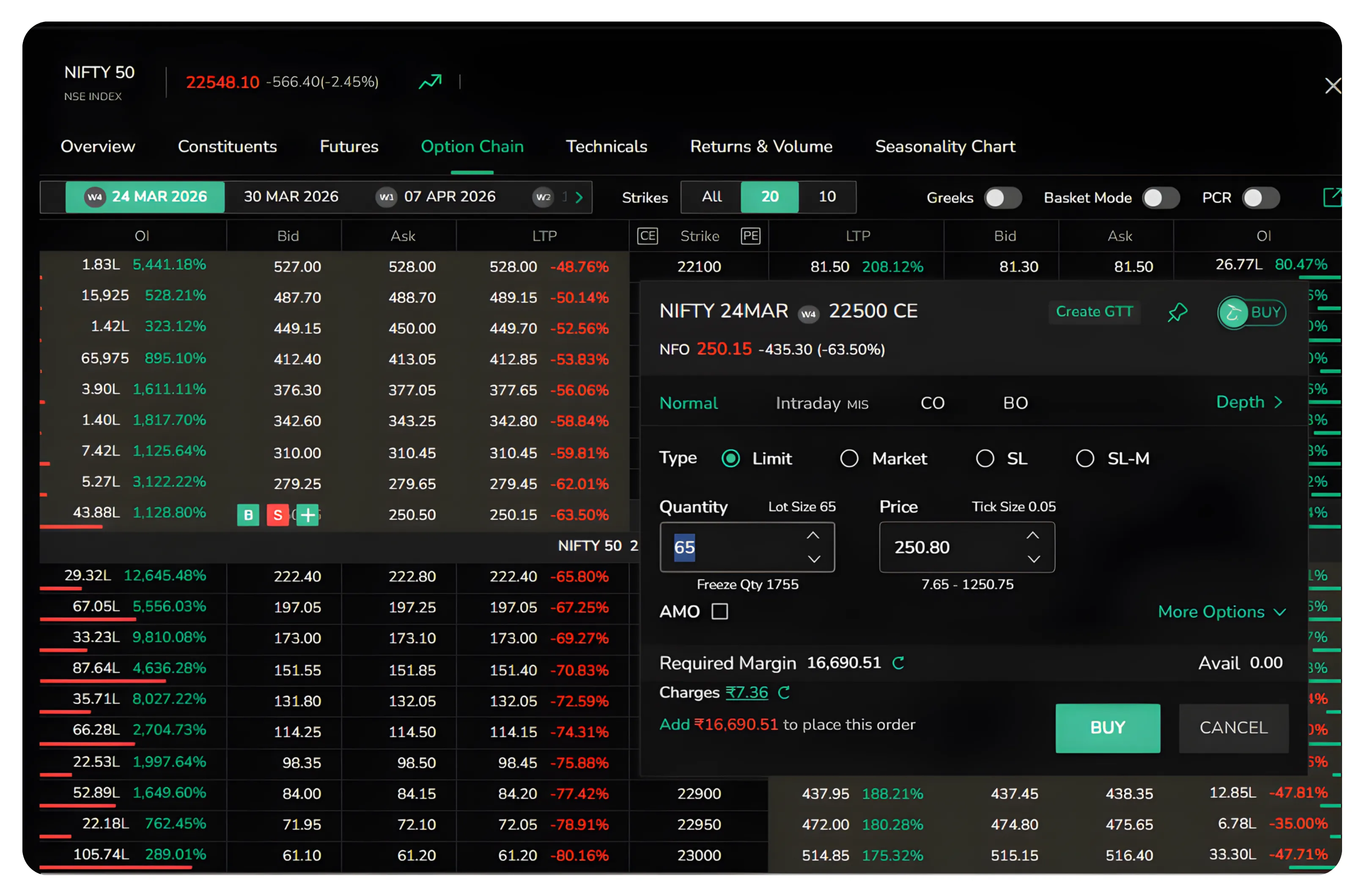
At this stage, the product type is set to Normal and the tab options visible are Normal, Intraday MIS, CO, and BO. Unlike a CubePlus MIS order where you place the stop loss separately after entry, a Cover Order combines both legs into a single submission, which is the key difference between a cover order and a MIS order for intraday options.
Switching to the CO Tab
Once the order pad is open, click on CO from the product type tabs to switch to Cover Order mode. The CubePlus CO tab restructures the order pad to include both the cover order entry order fields and the Stoploss Trigger in a single view, so both legs are configured before submission.
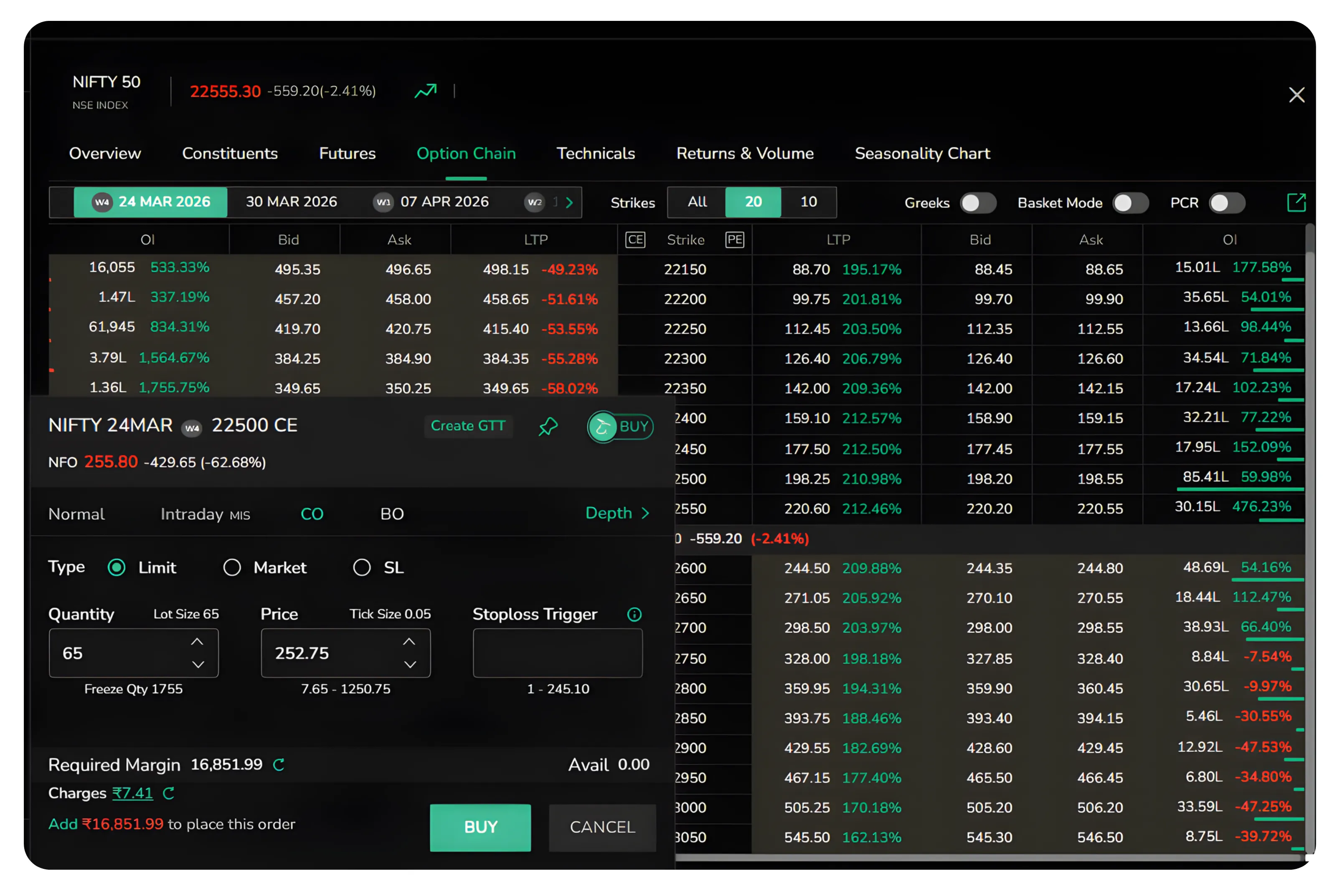
The CO tab supports three order types: Limit, Market, and SL. Each of these serves a different entry scenario, and the following sections explain each one.
Placing a Cover Order With a Limit Order Entry
When you select Limit under the CO tab, you can specify the exact price at which you want to enter the position. This is useful when the current LTP is higher than what you are willing to pay, and you want to wait for the price to come down to your preferred entry level before the order gets executed.
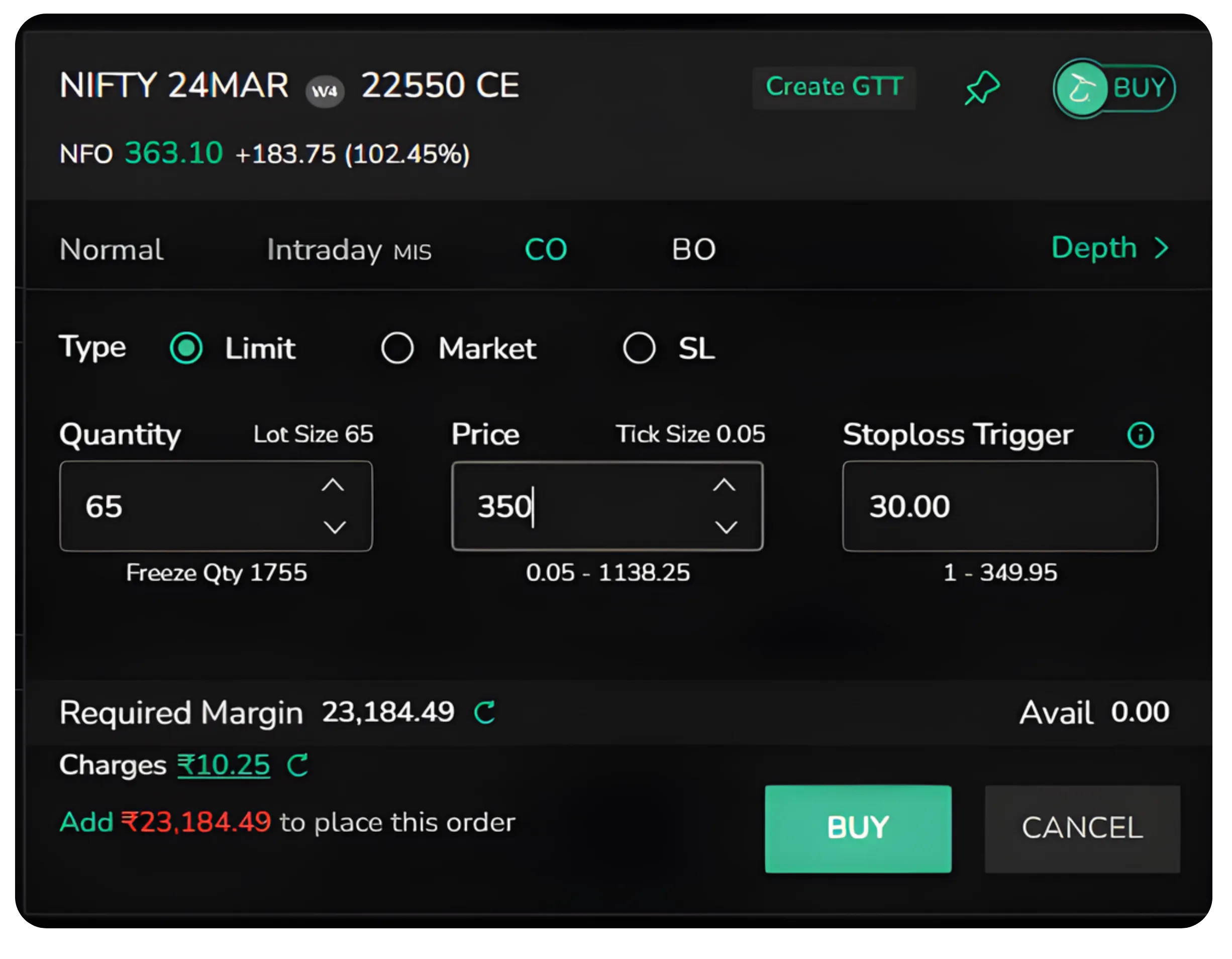
In the example shown, the entry price is set to 350 and the Stoploss Trigger is set to 30 This means the buy order will be placed at 350, and if the option price falls to 320 after execution, the stop loss will trigger automatically.
This combination allows you to plan both the entry and the exit risk in one go, which is particularly helpful when you are trading based on technical levels.
Placing a Cover Order With an SL Entry for Breakout Trading
The SL order type under the CO tab sets up a cover order SL entry, designed for situations where you want to buy only after the price confirms an upward move. This is a cover order breakout strategy where the order waits at a trigger level before executing. In options trading, an options buy SL order of this kind is commonly used when entering on momentum rather than anticipating a price reversal.
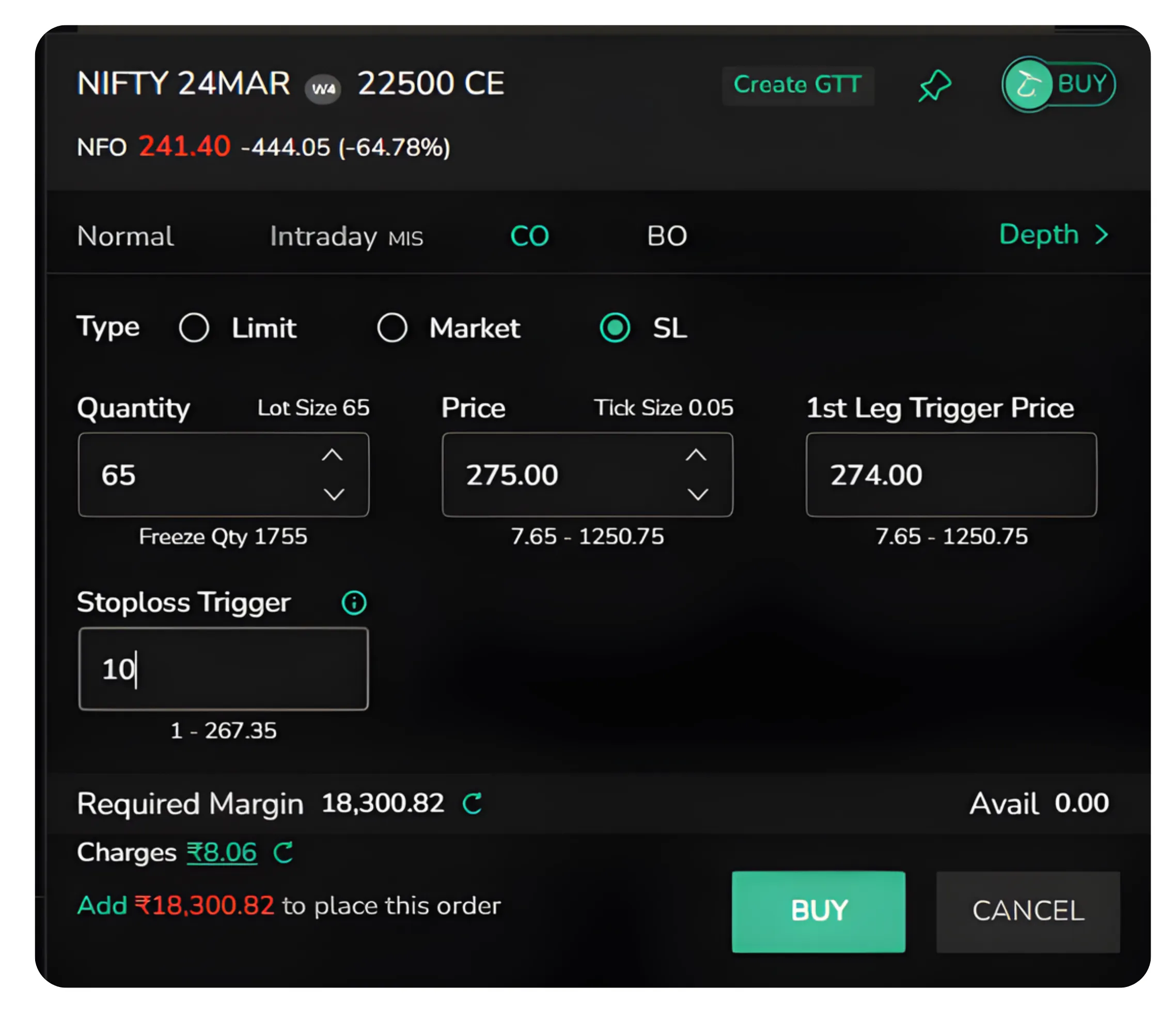
In this example, the 1st Leg Trigger Price is set to 274.00 and the Price is set to 275.00. The Stoploss Trigger is set to 10. The order will wait until the LTP reaches the trigger price and then place a buy at 275.00. The stop loss remains attached to this order from the moment it is placed.
Placing a Cover Order With a Market Order
When you select Market under the CO tab, you place a cover order market order that executes immediately at the best available price. This functions as an options market order combined with a mandatory stop loss, making it suitable when speed of entry matters more than price precision.
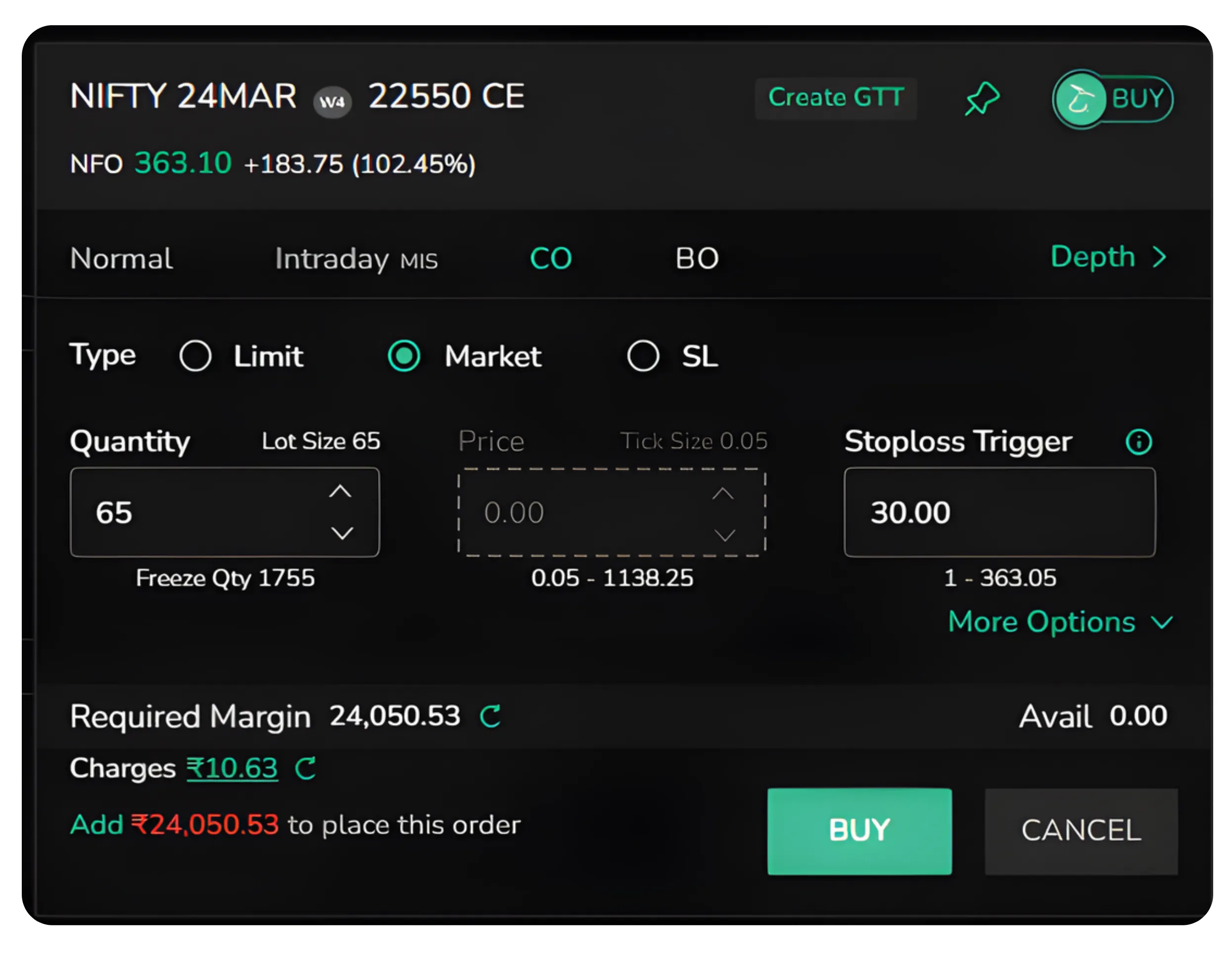
In this example, the Stoploss Trigger is set to 30. As soon as the buy order is executed at market price, the stop loss at 333.10 is simultaneously active. This is the quickest way to enter a position while ensuring your downside is protected from the moment you enter.
For positional traders who want the same pre-planned control, How to Place GTT Orders on CubePlus is worth a read.
Viewing the Cover Order in the Orders Tab
After placing the order, you can track it under the Orders tab in CubePlus. Open orders are listed here with details such as the symbol, quantity, price, trigger price, product type, LTP, order value, and the time of order placement.

In the example shown, the open order for NIFTY 24MAR 23250 CE is visible with a quantity of 65 and the product type clearly marked as Cover. This tab gives you a consolidated view of all pending orders so you can monitor their status in real time.
How to Modify a Cover Order on CubePlus
If market conditions change after you place the order and you need to adjust your entry price or stop loss, you can do so without cancelling and re-placing the order. Clicking on the three dots on any open order in the Orders tab brings up a context menu with options including Cancel, Modify, Bulk Modify, Repeat, Details, Order Log, Market Depth, Chart, Create Alert, Create GTT, and Add to Marketwatch.
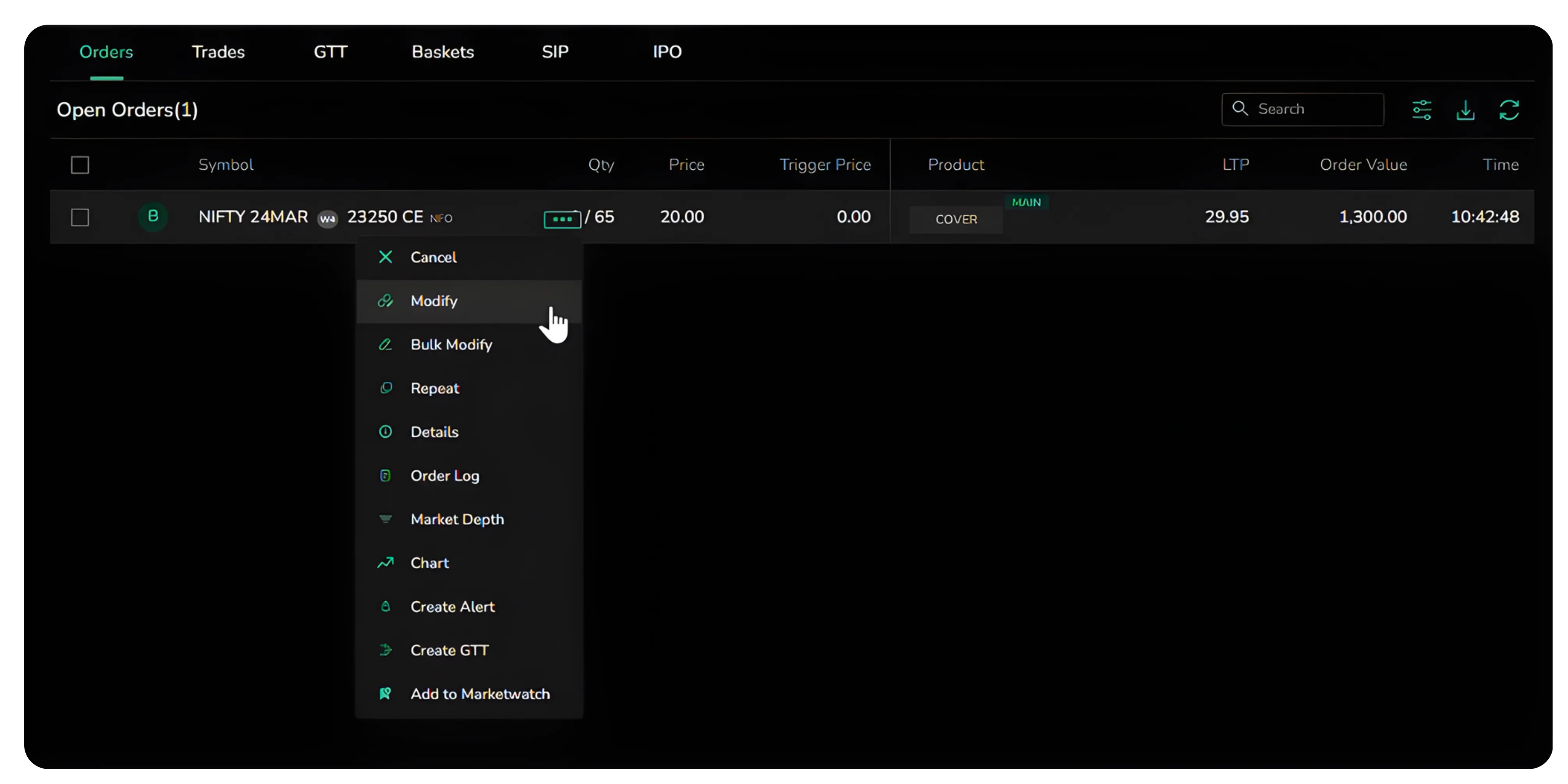
Clicking Modify opens the order pad again with the existing values pre-filled, allowing you to update the price or stop loss trigger as needed. This is a straightforward way to fine-tune your position without disrupting the order flow.
CubePlus Chart Order Visualization for Cover Orders
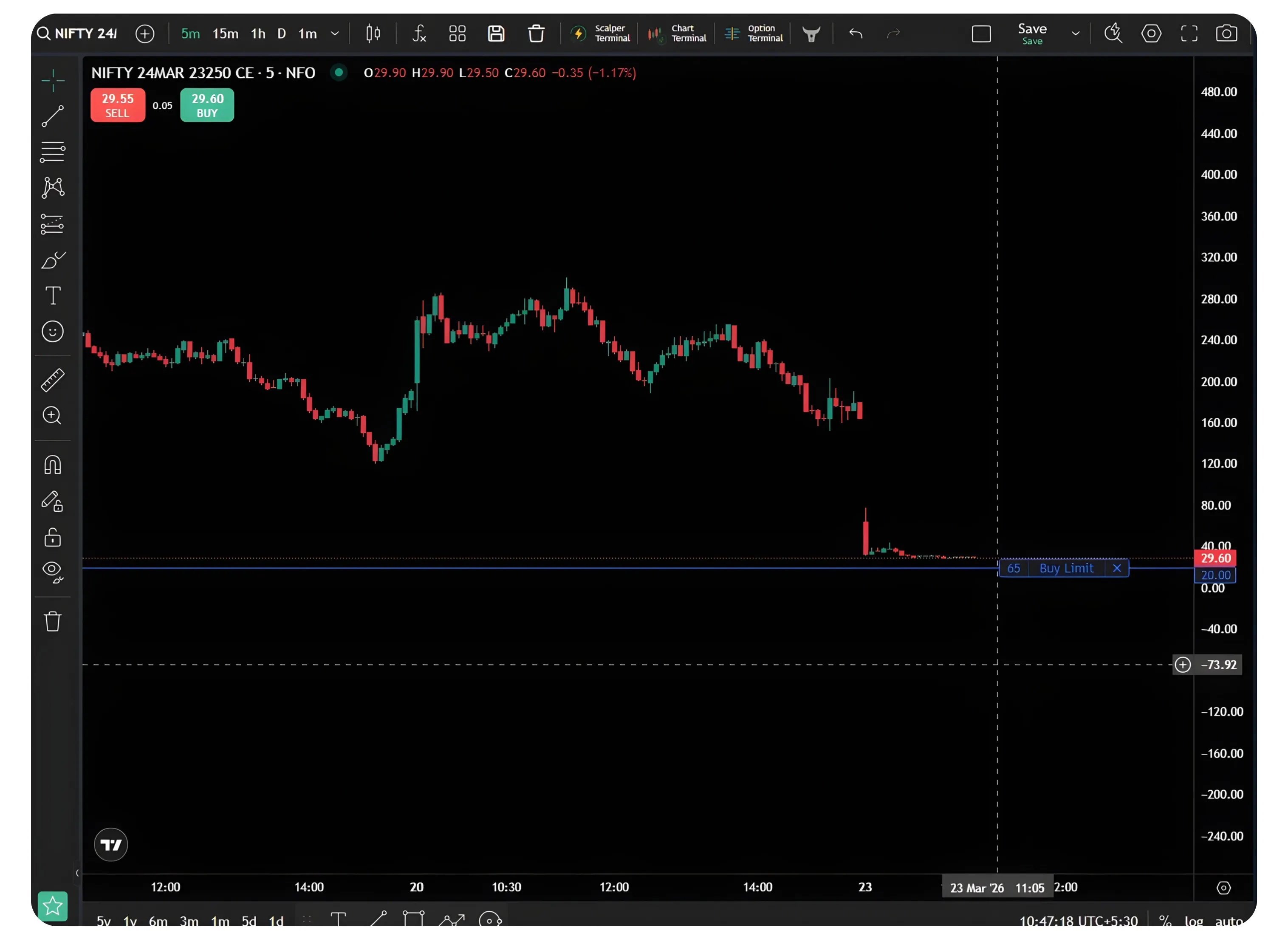
CubePlus also supports chart order visualization for cover orders, allowing you to see your open orders directly on the price chart as horizontal lines. This cover order chart feature in CubePlus helps you assess whether your entry and stop loss levels are realistic relative to current price action without switching between screens. When you open the chart for the option you have traded, pending orders are shown as horizontal lines at the respective price levels. In this example, the Buy Limit order placed as part of the cover order is visible on the 5-minute candlestick chart of NIFTY 24MAR 23250 CE, marked with a label showing the quantity and order type.
Similarly, when you place a cover order using the SL entry type, the buy stop limit order is also reflected on the chart at the specified trigger level. In the chart shown for the same option, the Buy Stop Limit is visible as a horizontal line, helping you see exactly where the entry will be triggered if the price moves up to that level.
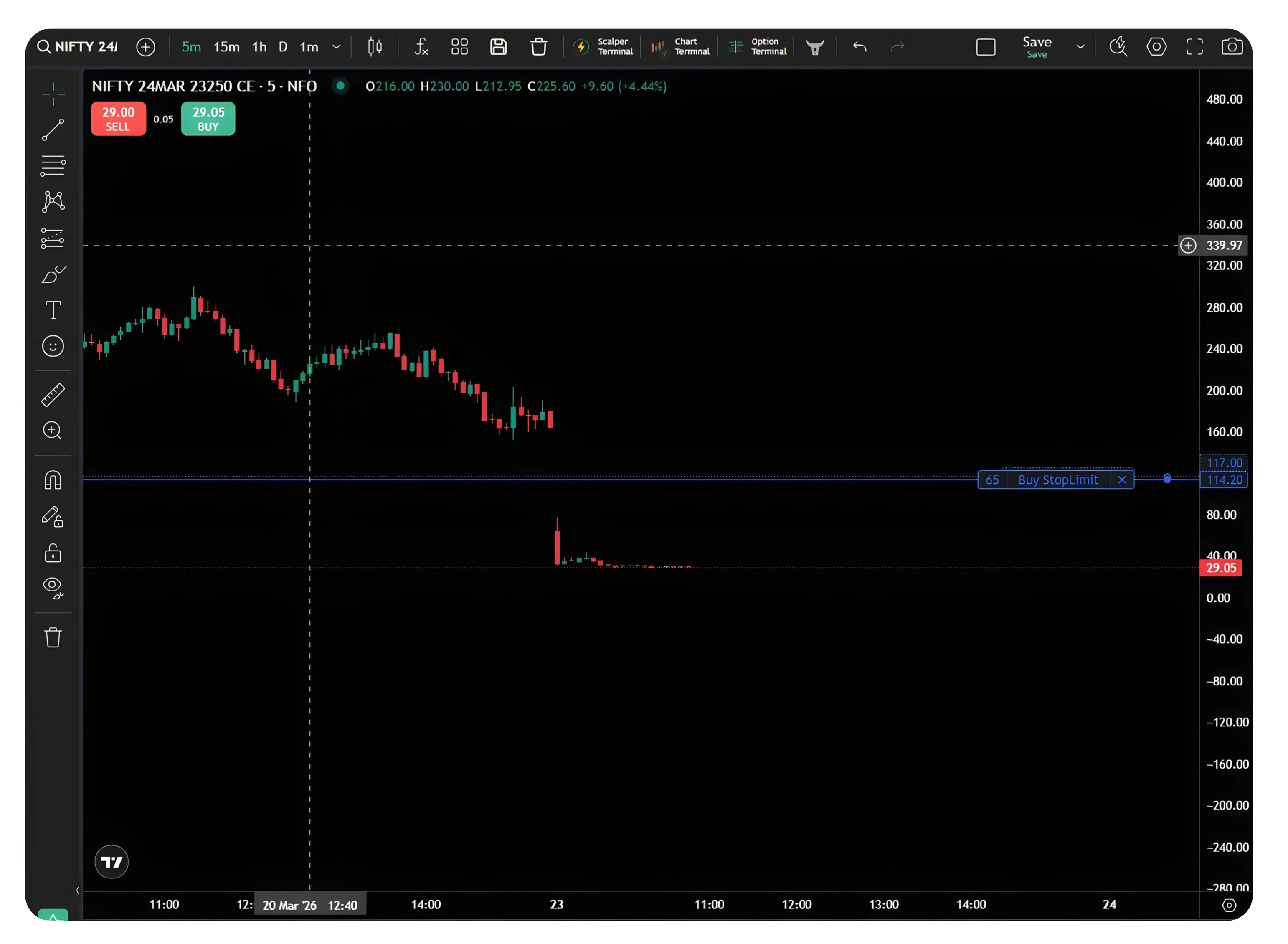
Having both the entry and the stop loss visible on the chart gives you a spatial understanding of your trade setup, which can be useful for reviewing whether the trade fits within your overall analysis.
Cover Order Margin Benefit for Intraday Options
One practical advantage of using a cover order is the cover order margin benefit it provides. Because the stop loss is mandatory and pre-attached to the position, the exchange treats the maximum risk as capped. This results in a lower margin requirement compared to a standard MIS order for the same position size, which is a meaningful advantage for intraday options trading in India where capital efficiency directly affects how many positions you can hold simultaneously.
Cover Orders Keep Your Risk Plan Intact From the Start
Options trading intraday can move fast, and waiting to place a stop loss after your entry is a habit that often costs more than expected. The Cover Order feature on CubePlus removes that gap by binding your entry and stop loss into a single order, placed at the same time. Whether you enter at a limit price, at market, or through an SL trigger for a breakout, your downside is defined before the trade even begins.
Disclaimer: The information provided in our blogs is for informational purposes only and should not be construed as financial, investment, or trading advice. Trading and investing in the securities market carries risk. Always conduct your own research and consult with a qualified financial advisor before making any investment decisions. Past performance is not indicative of future results. Copyrighted and original content for your trading and investing needs.
© 2026 — Tradejini. All Rights Reserved.